a Professional device for fast device
5
a nice machine for cutting paper with wonderful out
taaobs
Saudi Arabia , Jeddah
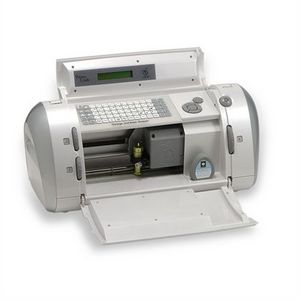


a nice machine for cutting paper with wonderful out
taaobs
Saudi Arabia , Jeddah
It's very very fantastic machine.
louali
ALGERIA
I really enjoy using this product. It comes in handy for creative things to add to any paper arts I am doing! There are many options of cartridges. The only reason I didn't give it a 5 is because the cartridges are expensive and the mats don't last that long. They lose their stickiness pretty quickly. Besides these things, I really enjoy using it!
nrdymum11
USA
I received this Cricut electronic cutter as a gift. I was impressed with the step-by-step booklets that come with Cricut cartridges and was able to use the machine straight out of the box. The only drawback to this model is that I need to cut 12 x 12 paper in half to use it since the cutting swath is only 6 inches wide. I understand that later models improved on this. But when I need to cut multiples for card-making the last cut is just as sharp and precise as the first one and that is all I want from this cutter. It is versatile and the cartridges offer many mix/match icons which increases it's usefulness. There is very little paper waste since the cutter can be repositioned if need be to use up scraps. All in all, a useful craft tool.
barefoot1
Cumberland, MD
I am new to this machine, but am having fun investigating all it can do. The cartridges available for it are so varied. The cutouts on card stock seem to hold up the best. The sticky mat that comes with it holds down your paper while the blade cuts out the design according to your cartridge selections. Let your imagination soar.
Ladyartist05
Barboursville, VA
I love love love this machine. I can make whatever I want, when I want. It's great for scrapbooking, Card making, crafts for kids and adults, Birthday signs, and so much more. the cartridges are kind of expensive but certain stores have really good deals on them all the time! I would recommend this to everyone, even if you think you are "not crafty" you will love this machine!
lexiehogge
Clifton, NJ
I absolutely love my Cricut! I bought the Quickutz tool but never bought any more alphabets because they were so expensive and it was so labor intensive to punch out the letters. This is so, so easy! I also have seven cartridges, since great deals can be found on them as well. I can cut any size letter from one inch to five and a half, and now that there is a computer software program to weld letter and create designs based on the shapes for each cartridge, your own creativity is really the only limit to what this machine can do!
collmal
Lincoln, CA
I own the original cricut and 6 fonts including the disney. It is a wonderful product. It has occastional very minor glitches every once in a while just like any computer but it is very easy to fix them by just shutting it off and turning it back on. It is quick, doesn't take a lot of space and easy to use. The replacement pieces are not incredibly expensive like the cutting blade and the cutting mat. I have owned this for one year and still have yet to replace the blade and have only replaced the cutting mat one time. They lose their stickiness after much use. The little booklets that come with the fonts are very informative (in a few languages to those that would benefit). Hope this helps!
cburrows
Tea, SD
Liked the Cricut Machine at first, and then after having it for a little bit. My enthusiasm was less. It's not as user friendly as it claims. Until today, I still have a problem with the machine on using the "paper saver" option. It does not stop cutting when it gets to the end of the paper, it will still go off the paper, and cut on the mat portion. There are alot of designs to choose from, which is a plus. I have used this for a few projects, but wouldn't say I've done anything mind blowing with it. Cartridges are kind of pricey as well.
alohalk
Waianae, HI
The Cricut is so easy to use. My 10 year old used it for a school project and it looked so great. (Of course he got an A). I actually purchased mine on Ebay for far less money than a new one. For me it was a great purchase. Now I have a paper addiction and can't go past a craft store without buying more paper.
rocksallday
O Fallon, MO
91.5